
How to Order Organic Groceries from Azure Standard (The Ultimate Guide)
This post contains affiliate links, so we may receive a commission if you choose to order through them at no additional cost to you. We only ever promote companies and products we actually use and trust.
Wanting to order high quality organic groceries from Azure Standard but are not exactly sure how the ordering process works? Keep reading and you’ll learn everything you need to know to feel confident placing your first order.
What is Azure Standard?
A Health Food Store but Better!
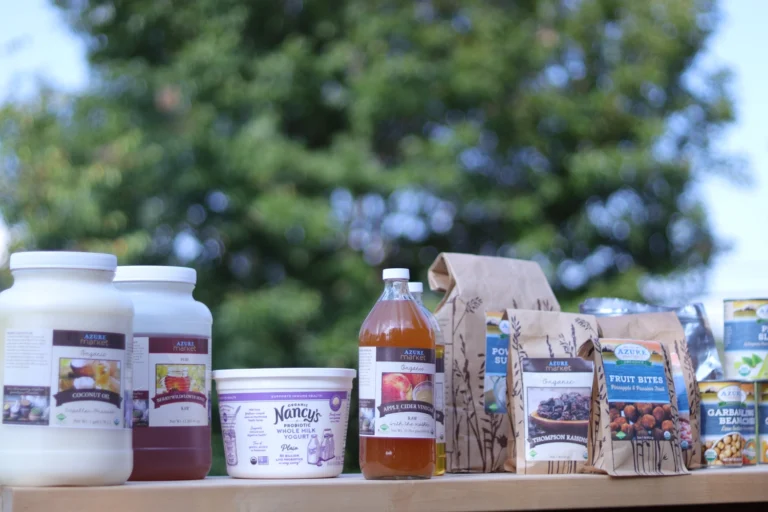
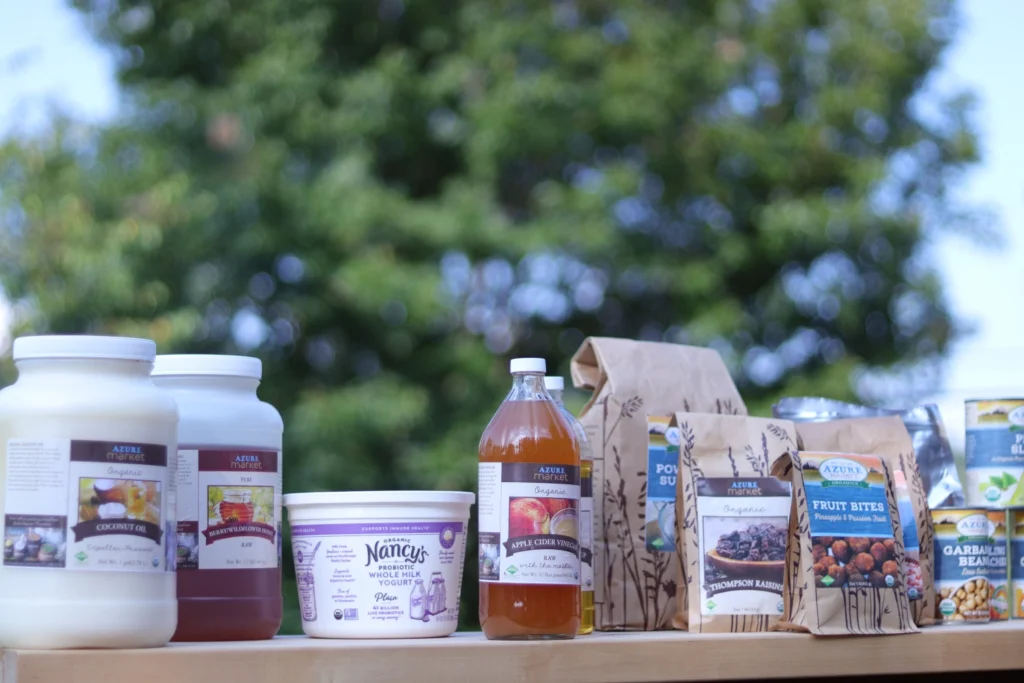
Azure Standard is like an online health food store, but with higher standards. They have higher standards for the products they carry than most health food stores and often, at much better prices.
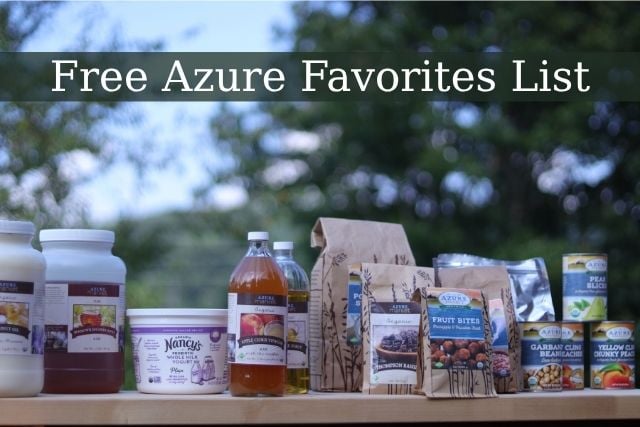
Everything they carry is non-gmo and there are many organic items that range from pantry staples, grains, dairy, meat, produce, personal care products, food storage, kitchen supplies, and so much more. We’ve ordered almost 200 different items, here is a list you can download with our favorites!
3 Reasons to Order from Azure Standard
Quality
Azure Standard has some of the highest quality food I’ve ever seen. They have incredibly high standards for what they allow. They never allow any GMO foods and the majority of what they carry is organic. Their website lists all of their standards and ingredients they don’t allow here.
Our family was astounded at the quality of the frozen vegetables. We will never buy frozen broccoli from anywhere else because it doesn’t come close to the quality we get from Azure.
See everything from our most recent reviews and prices here.
Prices
The prices on bulk whole foods are better than anywhere else I can find. We’ve lived in both a populated city and a small town an hour from the city and Azure has better prices on oats, wheat, honey, coconut oil, olive oil, and many more bulk food items than we could find in either of those places or anywhere else online.
Values
Azure Standard was founded by a farming family who switched their 2,000 acre farm to being fully organic in the 70s. Eventually people were asking for other healthy foods that they didn’t grow on their farm, so they started finding those products for them.
Azure believes that “the correct way to effect a positive change is not to attack the way it is being done, but to begin to do it right”. You can read more about their story and values on their website.
How does Azure work?
Ordering food from Azure was an unfamiliar process at first, so if you’re like me, you’ll want to know all the details. I have been ordering from Azure standard for about 2 years and I’ll give you every tip I’ve learned along the way so you can feel confident ordering real, healthy food for your family.
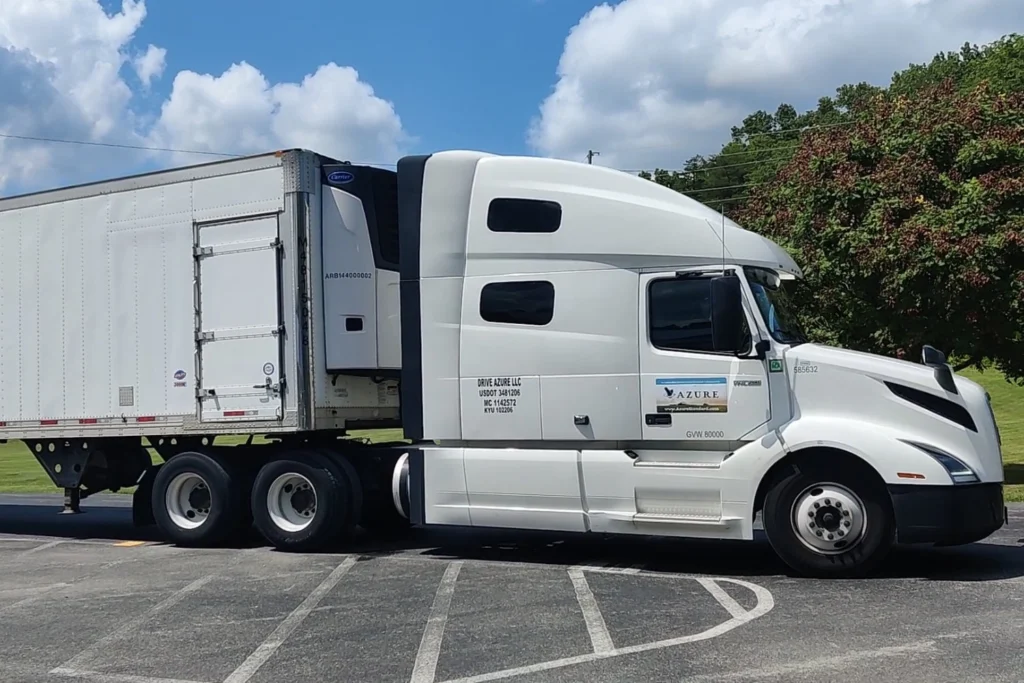
They ship your food from their warehouse in Washington to the drop location you choose. Everyone else who ordered from that drop location will meet up at the designated time to get their order. Most drop locations get an order once a month.
Steps to Ordering from Azure Standard
- Create a free account and find your closest drop location.
- Each drop location has a volunteer “Drop Coordinator”, this is the person you would contact with questions specific to your drop location.
- You add items to your cart for the upcoming drop. (You will know which week it is expected to arrive, but not the specific date and time yet).
- You complete the checkout process before the deadline.
- You will receive an email a couple of days later giving you the exact date and time of your drop. The “drop” is just what it’s called when the truck delivers the food at the specified location
- You arrive at your drop location (usually 15 minutes early) with everyone else who ordered from Azure for that location
- The truck arrives and people help to unload the truck. Items are all packed in cardboard boxes with people’s names on it. Every drop location does this part a little differently so you can ask your drop coordinator, or just go with the flow when you arrive.
Creating an account
Free & No Commitment
It’s completely free to sign up for an Azure account. This is not like a co-op where you are required to place an order at any time. You can create an account and just browse as much as you’d like.
The free signup process
- Click here to go to the Azure website
- Click the “Sign In” button in the top right corner
- Choose “New to Azure? Sign Up”
- Enter your name, email address, and create a password
- Click “Where we Deliver” to find the drop closest to you!
- Click “Join this Drop” to add it to your profile – This does not sign you up for anything, it just allows you to start browsing/shopping.
Your Drop Coordinator
Azure Standard drops are run by a drop coordinator in each location. This person is a volunteer who organized getting a drop setup your location.
If you have any questions specific to your location, this is the person you should contact.
Adding to Your Cart
Overview
Azure sells many sizes and quantity options for each item. Typically, the bigger quantity you buy at one time, the less the cost per ounce/per pound.
The way Azure’s cart works is a little different than a typical online store. Checking out simply locks you in to placing an order for that date, the order doesn’t actually go through until the cutoff time is reached.
This means you can add items and remove items from your cart for the upcoming order as much as you’d like until the “order cutoff time” even after you’ve completed the checkout process. You’ll always be able to see your order cutoff countdown in the top right corner when you’re logged in to your Azure Standard account.
Once that cutoff time passes (as long as you’ve completed the checkout process before that deadline) your order is locked in. You are not able to make any changes to what is in your cart after that time.
If you’ve checked out, make sure you review which items are in your cart before the cutoff time is reached to make sure you have what you want for your final order.
If you never complete the checkout process, your order will not go through.
Sale Prices
When you add sale items to your cart, you must checkout while the item is still on sale otherwise you will lose the sale price.
If you’ve already checked out for that order and you add a new sale item, you will receive the sale price
Sale Price Scenarios
Here’s a few scenario examples:
Scenario 1
Tortillas are on sale through today. You added them to your cart today. You did NOT checkout. Tomorrow when they are no longer on sale you will lose the sale price since you didn’t checkout.
Scenario 2
You checked out yesterday. Tortillas went on sale today. If they are already in your cart at the full price, you’ll have to remove them and re-add them at the sale price. If they are not in your cart yet, you can just add them at the sale price.
Scenario 3
Tortillas are on sale through today. You checked out while it was still on sale. Tomorrow they are no longer on sale and you change your quantity from 1 pack to 2 packs. You will NOT receive the sale price since you edited the item.
Shipping Information
I’m including the shipping information in this section, because if you want to price compare Azure to other places you’ll want to take into account the shipping fees.
Orders under $50
For orders under $50: There is a flat $5 fee
Orders over $50
According to Azure (you can find up to date shipping info on their pricing product page) these states have the 8.5% shipping charge:
AL, AR, CO, CT, DE, DC, FL, GA, IA, ID, IL, IN, KS, KY, LA, MA, ME, MD, MI, MN, MO, MS, MT-east of Missoula, NC, ND, NE, NH, NJ, NM-east, NY, OH, OK, PA, RI, SD, TN, TX, UT, VA, VT, WI, WV, WY.
Payment Methods
You can pay via ACH, debit card, or credit card.
If you use ACH or a non-rewards debit card there are no additional fees.
If you use a credit card there’s a 3% processing fee.
Completing the Checkout Process
- Checking out locks you in to placing an Azure order for that date, but you can still add and remove items as much as you want up until the deadline.
- When you check out, you lock in the sale price of any item in your cart (as long as you don’t edit it)
- You are not charged at the time of checking out, you will be charged when your order ships; usually a couple days after the deadline/order closes.
- Keep in mind, if you added an item to your cart during a sale and make any change to it, you will lose the sale price.
- Alternatively, if you have a full price item in your cart and it goes on sale after you’ve checked out, simply remove the item from your cart and add it back in while it’s on sale to get the sale price.
- It can be beneficial to checkout early in the month (as long as you know you will be able to make it to that drop) and then check the items throughout the month to see if any happen to go on sale. If they do, you can remove the full price item, and add it back at the sale price.
- Checking out does not guarantee an item will be in stock. If an item is out of stock when your order goes through, there is a chance you will not receive it if they don’t get more in stock before your order ships.
Getting the Drop Time
Azure gives you which week your drop will be before you place your order, but you won’t know the exact day and time until after you place your order.
Once the deadline closes, you usually receive an email a couple of days later with the exact day and time.
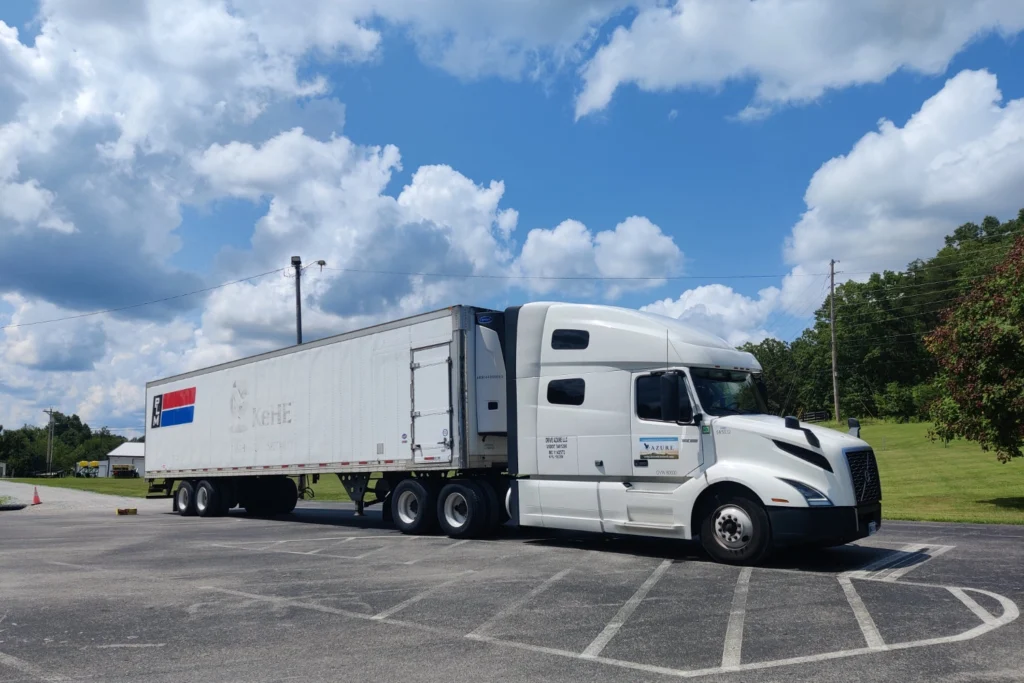
The orders for several drop locations are shipped on a refrigerated semi-truck from Washington. Since the truck goes to multiple locations along their route, there is always a chance something could cause a delay.
There have been a few times we received our order pickup day/time and it was changed. Azure sends an email letting you know of the delay and then another email with the new time when they know what it will be.
It can be helpful to have a backup plan or to have a friend or family member who could pickup your order if you can’t get there for some reason.
Order Pickup (Going to the Drop)
Consult your Specific Drop Instructions
Each drop location will have a slightly different procedure since they’re all independently organized by volunteers.
For example, at our location you are asked to arrive 15 minutes early, sign in with a person with a red clipboard, and then sign out before leaving when you’ve confirmed you have everything.
This will be different for each drop, so check in with your drop coordinator if you aren’t sure what is expected.
Dress for the Weather
Make sure you dress for the weather! I’ve picked up orders in scorching 95 degree heat, freezing cold snowy windy conditions, and everything in between.
Once, I made the mistake of picking up an order in the middle of winter when it was cold and windy with my ankles exposed. You’ll be standing outside and possibly helping to unload the truck for a half hour or so (depending on the size of your drop location) so make sure you’re dressed properly.
Transporting Cold Foods
If you order any refrigerated or frozen items in the summer, have a way to keep your food cold on the drive home.
For hot days, it’s best to bring a cooler to keep your perishable food cold unless you are lucky enough to live really close to the drop location.
Also, keep in mind anything in the back of the truck is kept cool, and you could have refrigerated things mixed in with boxes with pantry items.
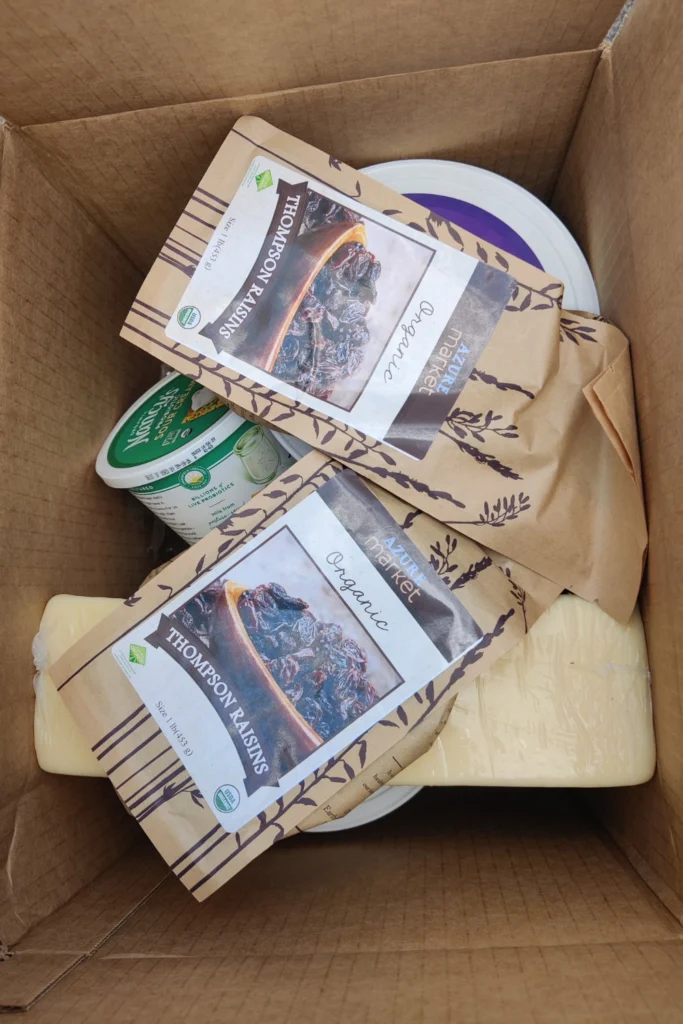
There was one occasion where I opened a box and saw pantry items on top and didn’t realize there were refrigerated items underneath. It’s important to know that Azure only separates frozen foods into separate boxes in a separate part of the truck. Pantry and refrigerated items could be mixed together in boxes.
I like to bring a utility knife to open up my boxes before leaving the drop and separate out the refrigerated/freezer items to put them in a cooler with ice packs in the summer.
Unloading the Truck
Each drop location is different, but typically there is some variation of everyone helping to unload the truck. Each box has the person’s name on it so that it can get to the correct person who ordered it.
Don’t worry if you’re physically unable to unload things, there’s always plenty of people to help if someone is not able to. Don’t let that stop you from ordering from Azure! Just get in touch with your drop coordinator to let them know.
The back part of the truck is a refrigerated area. All items (except frozen) are loaded into this part of the truck. That includes all pantry items, produce, refrigerated items, and non-food items mixed together in this part of the truck. At our location, the back is always unloaded first.
The side of the truck has a door leading to the frozen part of the truck. This is always unloaded last at our drop location.
Before you leave your drop, make sure you have what you ordered. Your Azure order confirmation will show you exactly how many cases you should have that are in the refrigerated section of the truck and how many are in the frozen section. Always count your boxes to double check.
Great! Now you’re ready to place your first Azure order like a Pro. Here is a video unboxing one of our huge Azure orders with close ups of every item if you’d like to see what to expect
If you’re interested, you can download the full list of all our favorite items from Azure Standard here.